# Scheduled Tasks
### Accessing the Schedule System
1. Log into your **Revitalize Hosting Control Panel**.
2. Select your **server**.
3. Click the **“Schedules”** tab in the left sidebar.
4. You’ll see a list of all existing schedules, their status, and when they last ran.
From here, you can **create new schedules**, **edit existing ones**, or **disable** them entirely.
***
### Creating a New Schedule
Click **Create Schedule** to start.\
You’ll see several configuration fields that determine how and when your schedule runs.
| Field | Description |
| --------------------------------------------- | ------------------------------------------------------------------------------------------------------- |
| **Schedule Name** | A readable name to identify your schedule (e.g., `Nightly Restart`, `Daily Backup`, `Morning Message`). |
| **Minute / Hour / Day / Month / Day of Week** | These fields use **Cron syntax** to define when your schedule runs (explained below). |
| **Only When Server Is Online** | Runs the schedule only when your server is running. Recommended for live tasks. |
| **Schedule Enabled** | Must be checked for the schedule to actually execute automatically. |
Once your schedule is saved, you can start adding **tasks** to it.
***
### Adding Tasks to a Schedule
Each schedule can contain **one or multiple tasks**, which execute in order.
1. Click your **newly created schedule**.
2. Click **New Task**.
3. Choose the **Action Type**:
* **Send Command** – Runs any console command automatically.\
Example:
```
say Server restarting in 5 minutes!
restart
```
* **Create Backup** – Automatically saves a backup (see the Automatic Backups page for details).
* **Power Action** – Automatically restart, stop, or start the server.
4. Optionally set a **Delay (in seconds)** if you want one task to run after another.\
Example:
* Task 1: Send warning message
* Task 2: Restart server after a 60-second delay
5. Click **Create Task** to finalize.
***
### Understanding Cron Syntax
Cron lets you define exactly when tasks run.\
The schedule fields look like this:
{% hint style="info" %}
Reminder that the game server is on Central Time. Apply accordingly.
{% endhint %}
| Field | Example | Description |
| ---------------- | ------- | --------------------------------- |
| **Minute** | `0` | Minute of the hour (0–59) |
| **Hour** | `3` | Hour of the day (0–23) |
| **Day of Month** | `*` | Day of the month (1–31) |
| **Month** | `*` | Month of the year (1–12) |
| **Day of Week** | `*` | Day of the week (0–6, Sunday = 0) |
#### Common Examples
| Goal | Cron Settings | Description |
| ------------------------ | -------------- | ------------------------- |
| Every 6 hours | `0 */6 * * *` | Run 4 times per day |
| Every night at 3 AM | `0 3 * * *` | Perfect for nightly tasks |
| Every Sunday at midnight | `0 0 * * 0` | Once a week |
| Every 30 minutes | `*/30 * * * *` | Frequent maintenance |
| Once a month | `0 0 1 * *` | 1st of each month |
You can also click **Show Cheatsheet** in-panel to view more examples.
***
### Example Uses
Here are a few practical uses for Scheduled Tasks:
| Example | Action(s) | Timing |
| ---------------------- | -------------------------------------------------------------- | ------------------- |
| **Nightly Restart** |
1. Send message “Restarting soon!” 2. Restart server
| Every day at 3 AM |
| **Daily Backup** | 1. Create Backup | Every night at 2 AM |
| **Announcement Timer** | 1. Send command `say Welcome to Revitalize Hosting!` | Every hour |
| **Auto Save** | 1. Send command `save-all` | Every 15 minutes |
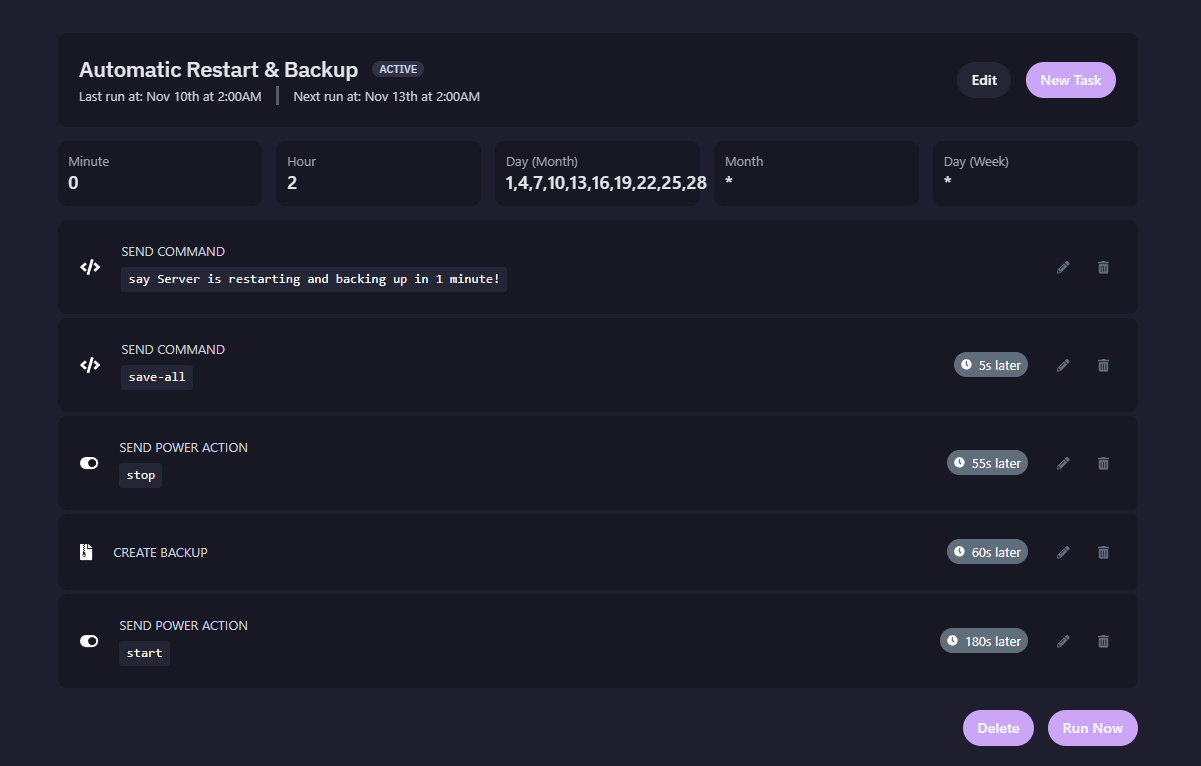
You can combine multiple tasks under one schedule to automate complex routines.\
\
Heres an example of a Automatic Restart & Backup task that runs every 3 days. The options are endless.
***
### Best Practices
* Name schedules clearly (e.g., “Nightly Restart” vs “Schedule #1”).
* Avoid overlapping heavy tasks (e.g., don’t run backups and restarts simultaneously).
* Test commands manually first to ensure they behave as expected.
* Keep the **Schedule Enabled** box checked, or it won’t run automatically.
* Always monitor storage if using automated backups frequently.
***
You can use **delays** to chain tasks safely:
* `say Server restarting in 30 seconds!`
* Wait **30 seconds**
* `restart`
This ensures players are warned before downtime. Or if you are doing a backup task, you prevent the server from booting up to soon, etc.
***
### Summary
| Feature | Description |
| ------------------ | --------------------------------------------------- |
| **Schedules** | Define when actions should run automatically |
| **Tasks** | The actual actions — commands, backups, or restarts |
| **Cron Timing** | Flexible time control for automation |
| **Delays** | Add waiting time between multiple actions |
| **Enabled Toggle** | Ensures your schedule runs automatically |